

Follow these steps to make Thunderbird use an encrypted connection with your email.
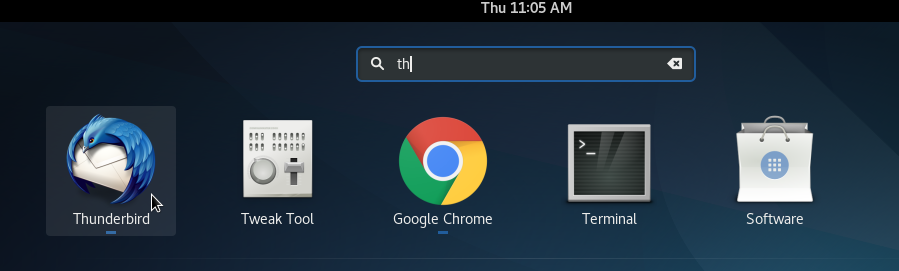
Step 1: Open Thunderbird.
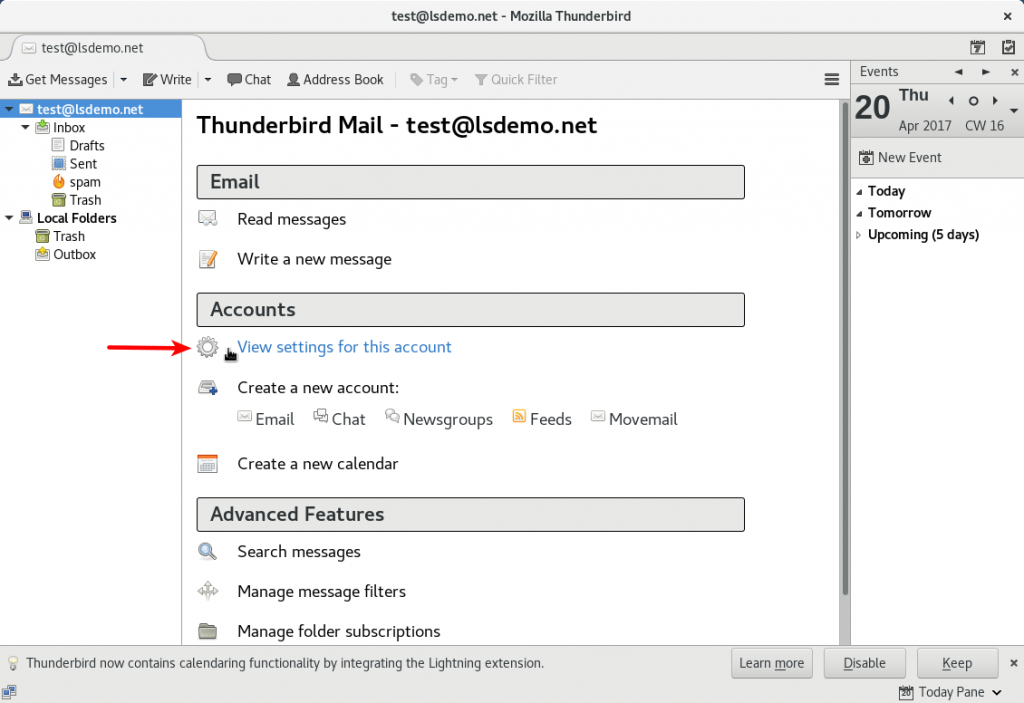
Step 2: Under Accounts, click View settings for this account.
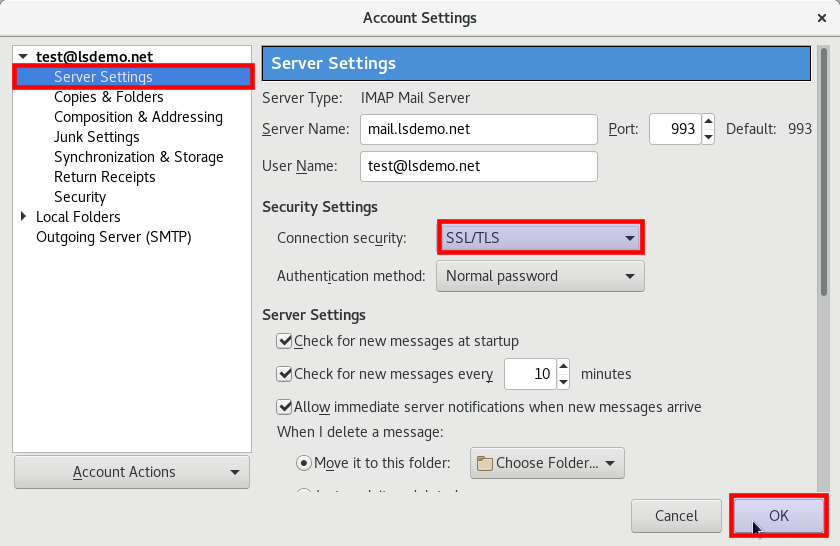
Step 3: On the left, click Server Settings under the email account you want to change. Make sure the Server Name is mail.yourdomain.com, choose SSL/TLS for Connection security (the port changes to 993 for IMAP or 995 for POP3), and click OK.
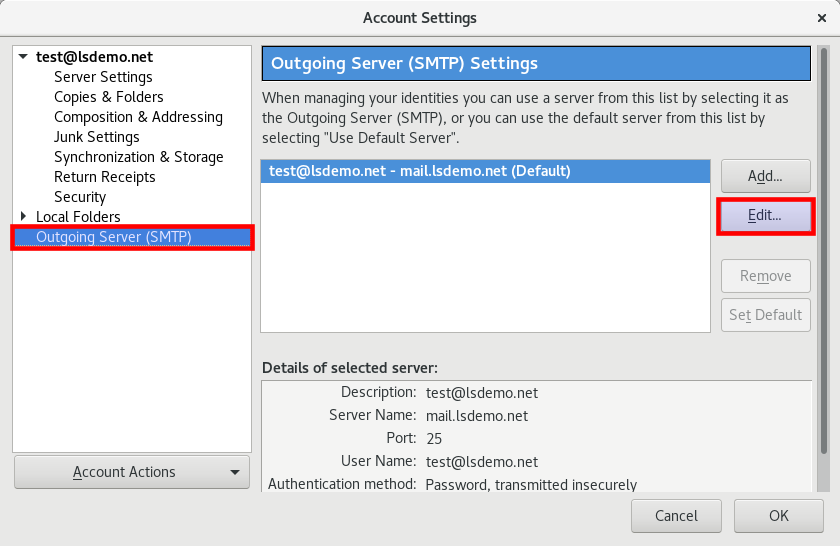
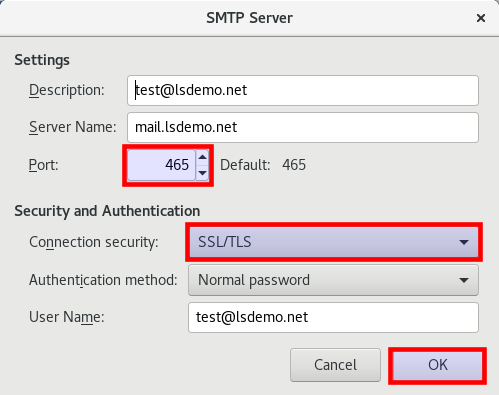
Step 4: From the settings list, choose Outgoing Server (SMTP), select your server and click Edit.
Step 5: Set Connection security to SSL/TLS, change the port to 465, and click OK to save.
Step 6: Send and receive a test message to make sure everything works.
For other email programs, see Outlook email settings.
Related service: Hyyat Host business hosting gives you your website plus unlimited email accounts on your domain from $77/year.


