

Email forwarding sends incoming messages for one email address to a different address. This guide shows how to create a forwarder in cPanel, and how to forward all email for a domain.
What is email forwarding? #
If your business has several addresses, such as [email protected], [email protected] and [email protected], you can forward all of them to one account such as [email protected]. Forwarders can be set up in cPanel or from Webmail.
cPanel offers two types of forwarders:
- Email account forwarders: the most common type. They forward messages for one address (for example [email protected]) to another address (for example [email protected]). You can create several forwarders to send one address to several accounts.
- Domain forwarders: forward all incoming email for one domain to another domain, for example from test.example.com to example.com.
1. Forward an email address #
1. Log in to cPanel. See how to log in to cPanel.
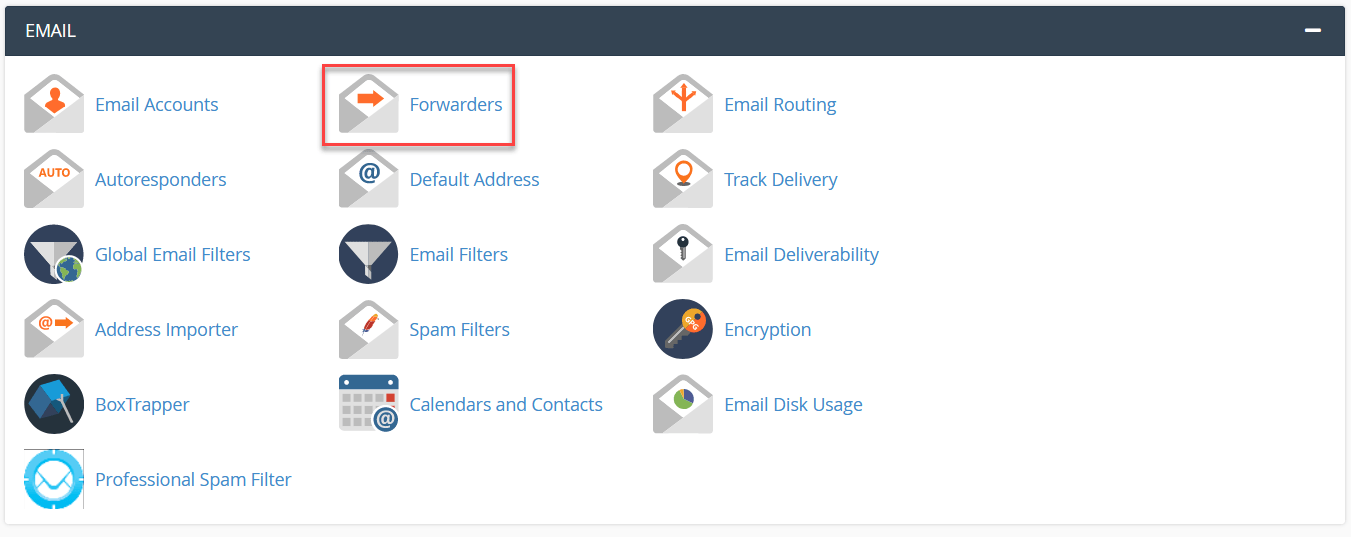
2. In the Email section of cPanel, click Forwarders.
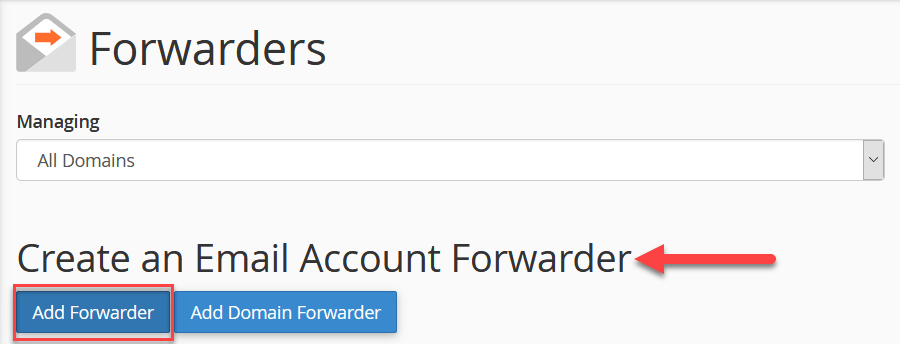
3. Under Create an Email Account Forwarder, click Add Forwarder.
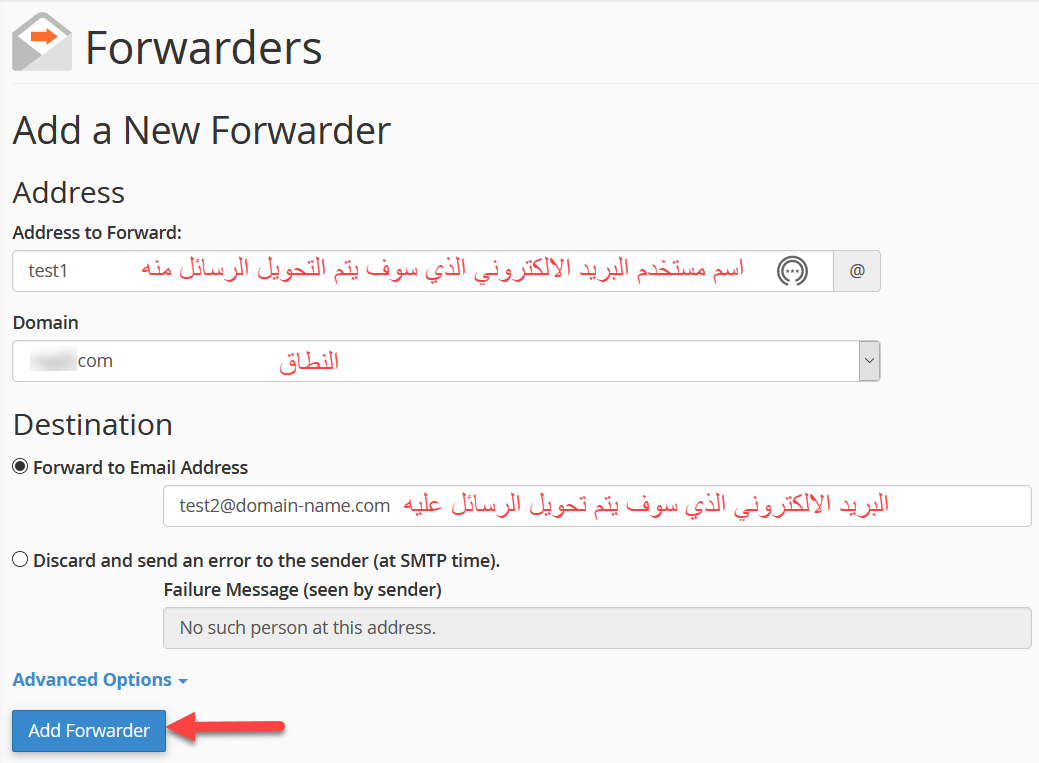
4. In Address to Forward, type the email username you want to forward. In Destination, type the full email address that should receive the messages. Click Add Forwarder.
The forwarder is created and now appears in the list on the Forwarders page.
2. Forward all email for a domain #
1. In the Email section of cPanel, click Forwarders.
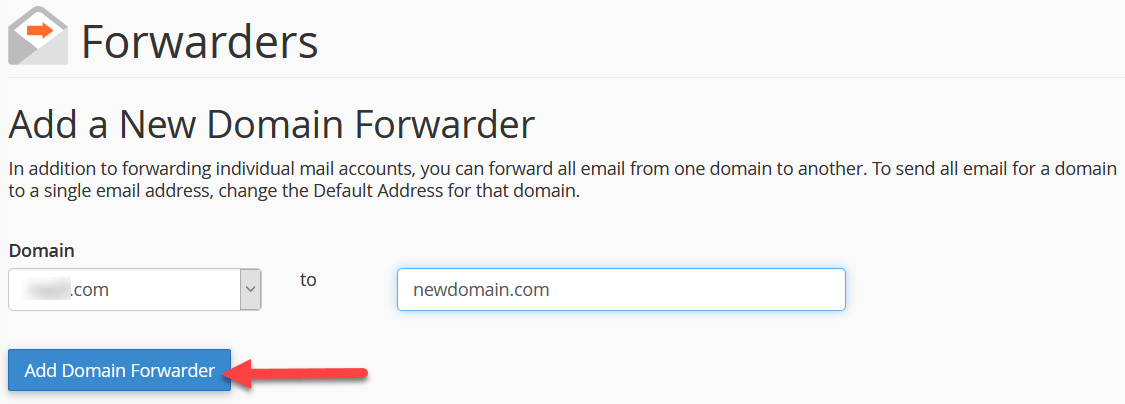
2. Click Add Domain Forwarder.
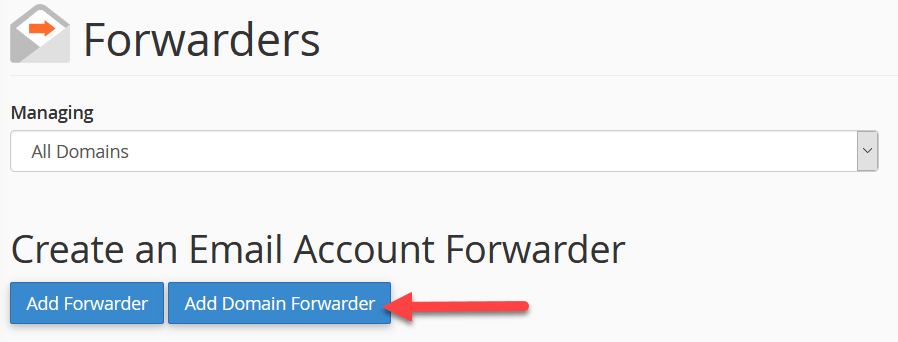
3. Select the domain to forward email from, enter the domain to forward it to, and save.
Note: according to the cPanel documentation, domain forwarding only applies when delivery would otherwise fail. If a message is sent to an address that exists as a mailbox or autoresponder, it is not forwarded.
Related: how to redirect a web page to another page.
Related service: Hyyat Host business hosting gives you your website plus unlimited email accounts on your domain from $77/year.


