

In short: To set up your email in Outlook, use the server mail.yourdomain (e.g. mail.example.com) and your full email address as the username. Incoming: IMAP port 993 or POP3 port 995. Outgoing: SMTP port 465. Use SSL encryption for both and enable “My outgoing server (SMTP) requires authentication”.
Need professional email for your company? Hyyat Host business hosting gives you your website plus unlimited email accounts on your domain (such as [email protected]) from $77/year, with a higher sending limit, free migration of your current email and 24/7 support. Compare hosting types.
Required email settings #
| Setting | Value |
|---|---|
| Username | Your full email address, e.g. [email protected] |
| Incoming and outgoing server | mail.example.com (replace example.com with your domain) |
| Incoming IMAP (recommended) | Port 993, encryption SSL/TLS |
| Incoming POP3 | Port 995, encryption SSL/TLS |
| Outgoing SMTP | Port 465, encryption SSL/TLS, authentication required |
This guide sets up Microsoft Outlook for email hosted at Hyyat Host. If your email is hosted elsewhere, check your provider’s settings.
IMAP or POP3? #
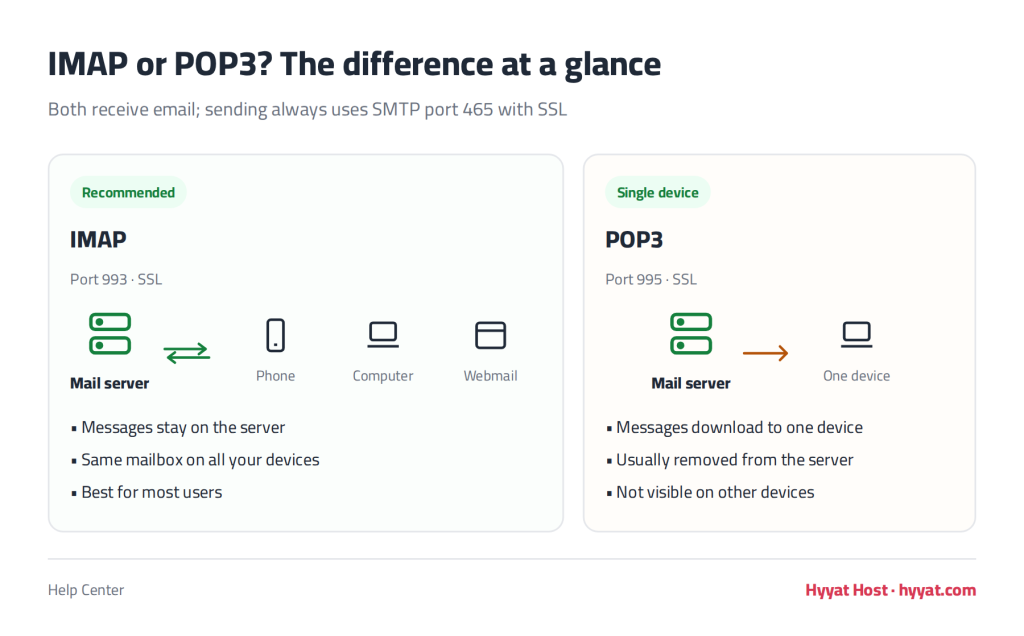
- IMAP (recommended): messages stay on the server, so you can read them on your phone, computer and webmail at the same time, and changes sync across all devices.
- POP3: messages are downloaded to one device and usually removed from the server, so you only see them in the app that downloaded them. Suitable only if you use a single device.
Add a new email account in Outlook (2016 / 2019 / 2021 / Microsoft 365) #
- Open Outlook, go to File and click Add Account.
- Type your email address, open Advanced options, tick Let me set up my account manually, then click Connect.
- Choose IMAP (or POP if you prefer).
- Enter the incoming server mail.example.com, port 993 (or 995 for POP), encryption SSL/TLS; and the outgoing server mail.example.com, port 465, encryption SSL/TLS. Click Next.
- Enter your email password and click Connect. When the success message appears, click Done.
Switch an existing account to secure settings (SSL/TLS) #
If your account was added earlier with old settings, update it as follows:
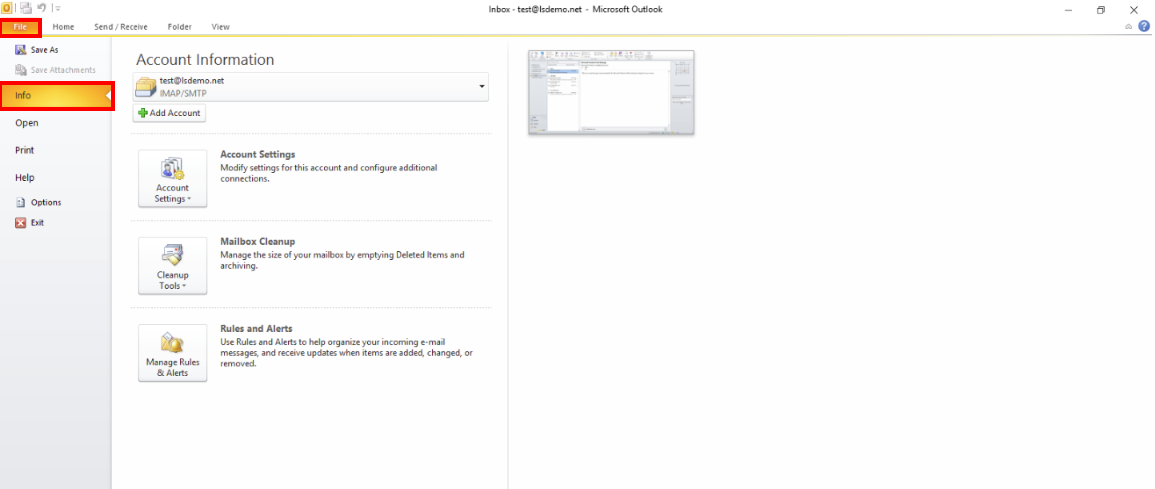
- Open Outlook and go to File → Info.
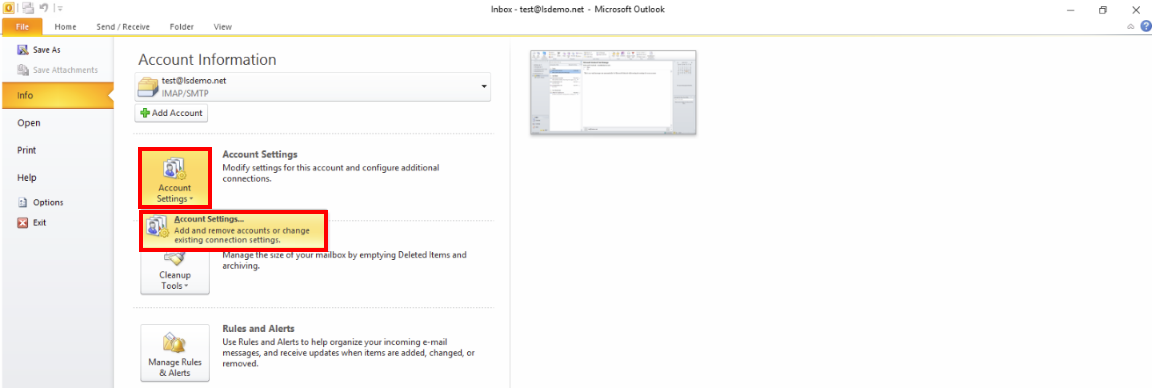
- Under Account Information click Account Settings, then choose Account Settings from the list.

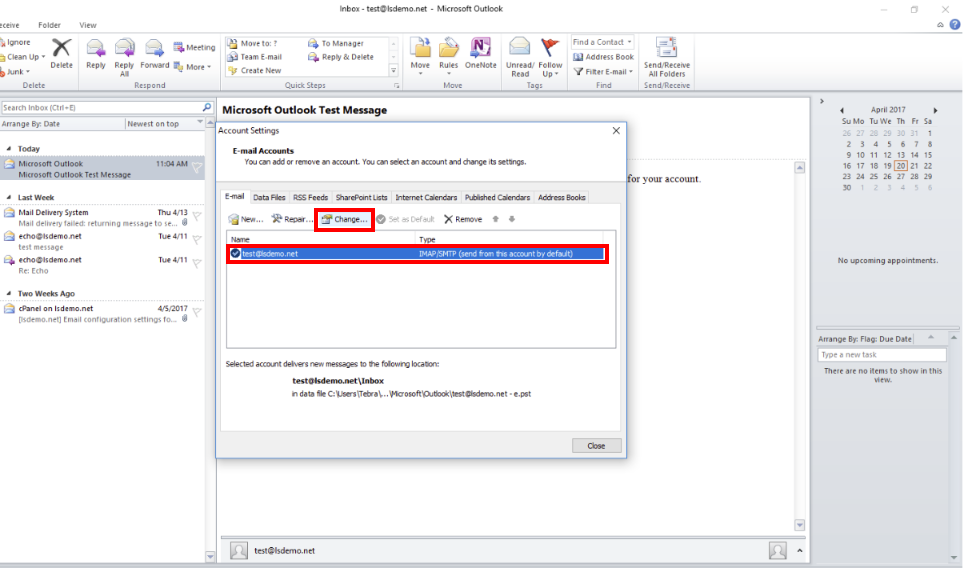
- Select your email account and click Change.

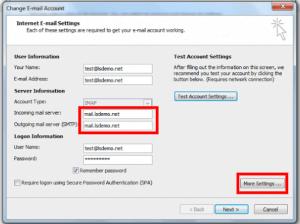
- Make sure the incoming and outgoing server are written as mail.yourdomain, then click More Settings.

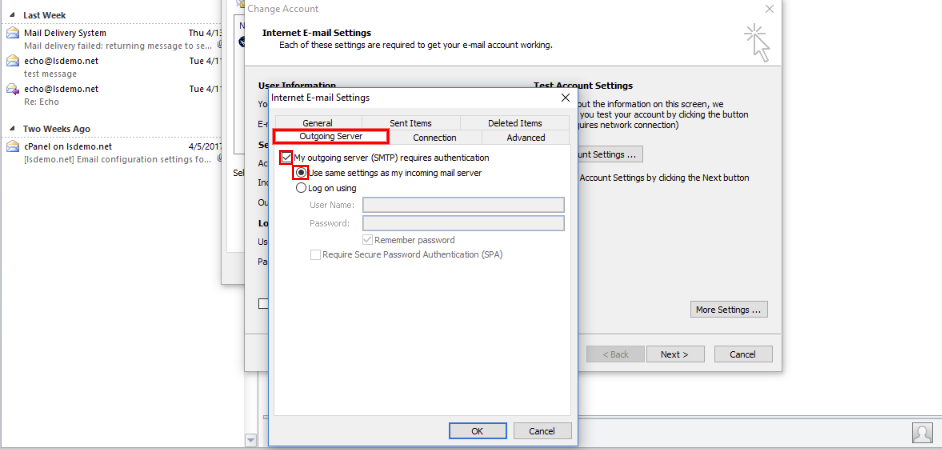
- Open the Outgoing Server tab, tick My outgoing server (SMTP) requires authentication and choose Use same settings as my incoming mail server.

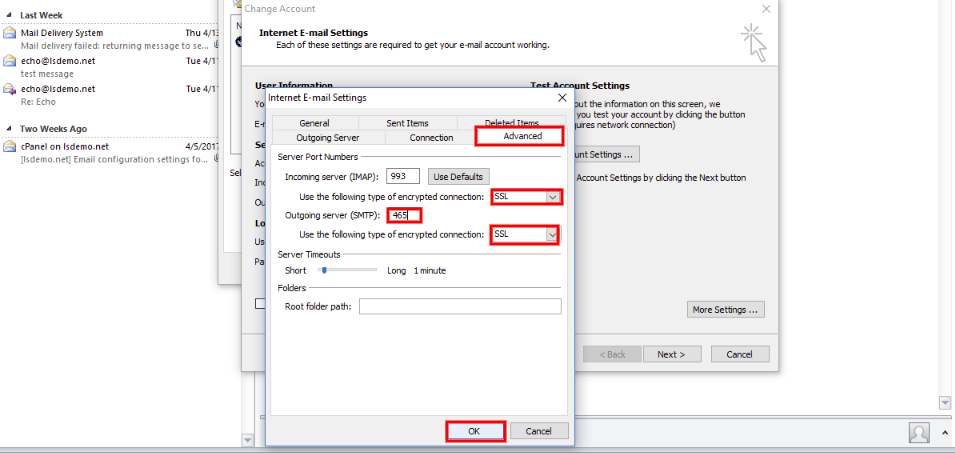
- Open the Advanced tab: for the incoming server choose SSL and set the port to 993 (IMAP) or 995 (POP3); for the outgoing server (SMTP) choose SSL and set the port to 465. Click OK.

- Click Test Account Settings, wait for the test to succeed, then click Close and Finish.

Troubleshooting #
- Can’t send email: make sure My outgoing server (SMTP) requires authentication is ticked with Use same settings as my incoming mail server. If it still fails, choose Log on using and enter your full email address and password.
- Security certificate warning: check that the server name is exactly mail.yourdomain. If the warning continues, contact support and we will give you the server name that matches the certificate.
- Password not accepted: make sure the username is your full email address, and untick Require logon using Secure Password Authentication (SPA).
- Your screens look different: Outlook looks different between versions, but the settings in the table above are the same in every version and in any other email app.
- Why not ports 110, 143 and 25? They are unencrypted, so your password and messages travel in plain text, and many internet providers block port 25. Always use the encrypted ports 993, 995 and 465.


