WordPress is the most popular website platform in the world, loved for its simple interface and huge choice of themes and plugins.
Step 1: Download WordPress
Download the latest version from wordpress.org (or the Arabic edition from ar.wordpress.org). Extract the .zip file; you will get a wordpress folder containing the files.
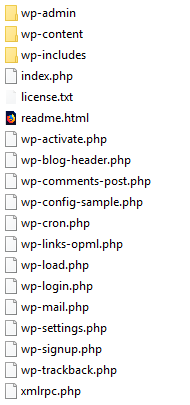
Step 2: Log in to cPanel
Step 3: Create a database
In cPanel, create a new MySQL database and a database user, and give the user all privileges on the database (see how to create a database and assign a user). Save the database name, username and password; you will need them during installation.
Step 4: Upload the files
Decide where to install WordPress: in the main folder (example.com) or a subfolder (example.com/blog). For the main site, upload to public_html; for a subfolder, upload to that folder. Upload with FTP or cPanel File Manager.
Note: upload the files inside the wordpress folder, not the folder itself.
Step 5: Run the installer
- Open the installer in your browser: https://example.com/wp-admin/setup-config.php, or https://example.com/blog/wp-admin/setup-config.php for a subfolder (replace example.com with your domain).
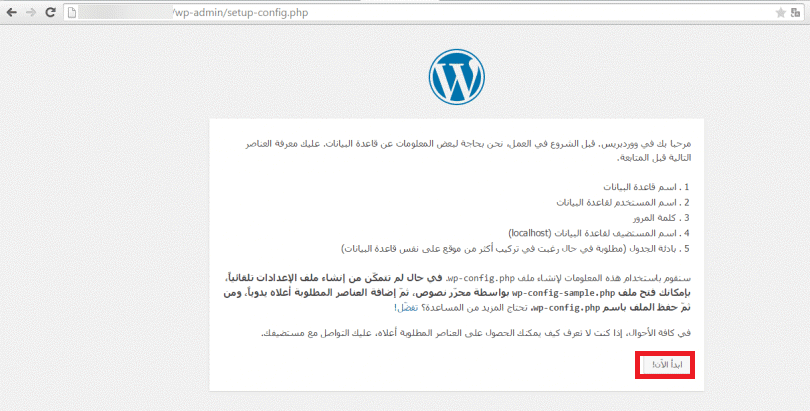
- Click Let's go!, then enter the database name, username and password you created, and click Submit.
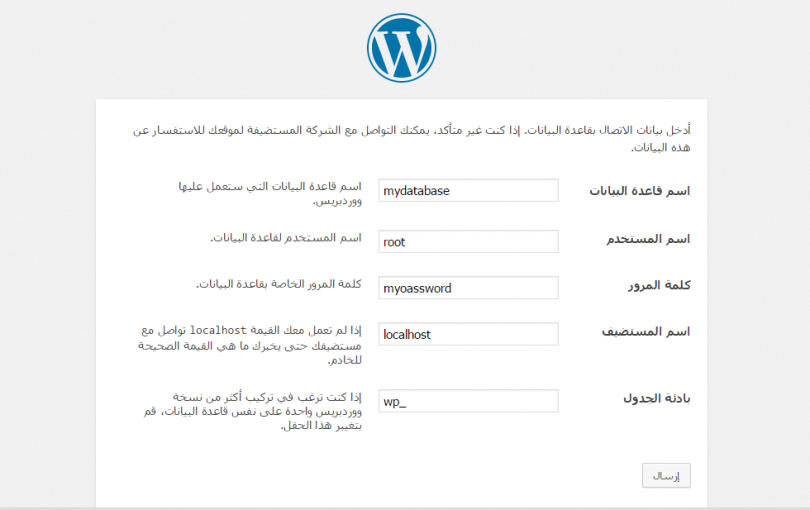
- On the success page click Run the installation.
- Fill in your site title, admin username, password and email, then click Install WordPress.
- Log in at example.com/wp-admin with the details you entered.
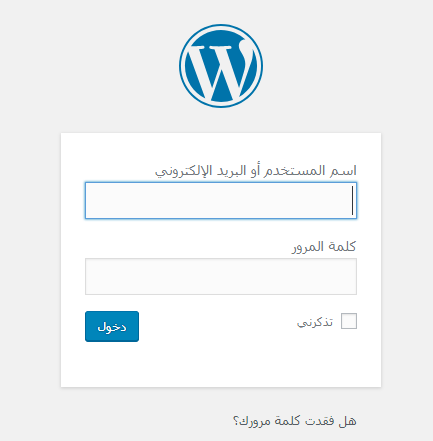
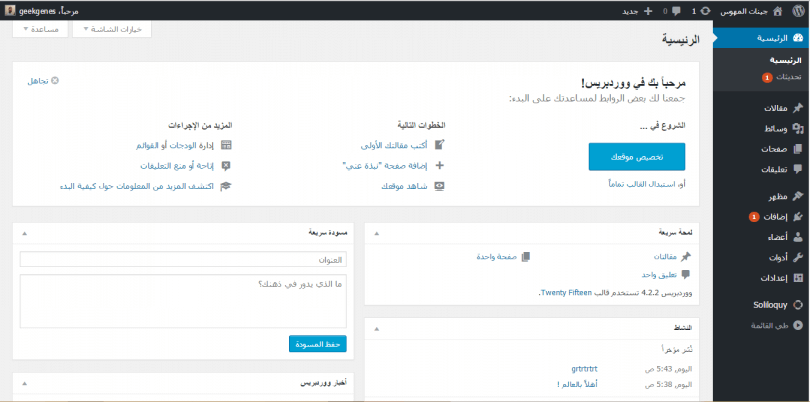
This is what the WordPress dashboard looks like after installation:
Next steps
Related service: fast WordPress hosting from Hyyat Host, with support that replies within 24 hours.