In short: In cPanel open MySQL Databases: create the database under Create New Database, add a user under MySQL Users → Add New User, then under Add User To Database choose both, click Add, tick All Privileges and click Make Changes.
Step 1: Create the database
- Log in to cPanel (see how to log in to cPanel).

- In the Databases section, click MySQL Databases. cPanel looks slightly different between versions, but the options are the same.
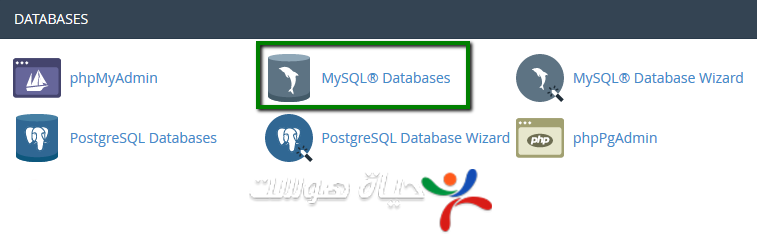
- Under Create New Database, type a name and click Create Database.
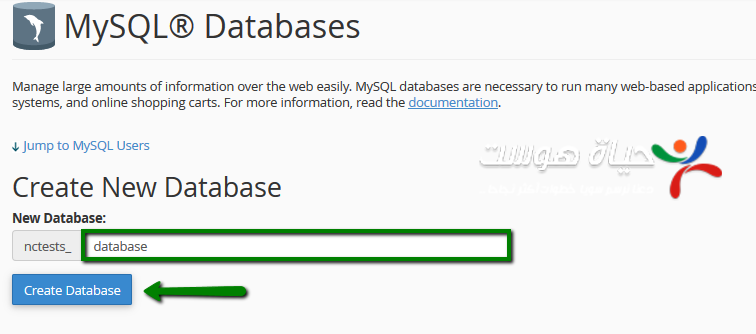
Step 2: Create a database user
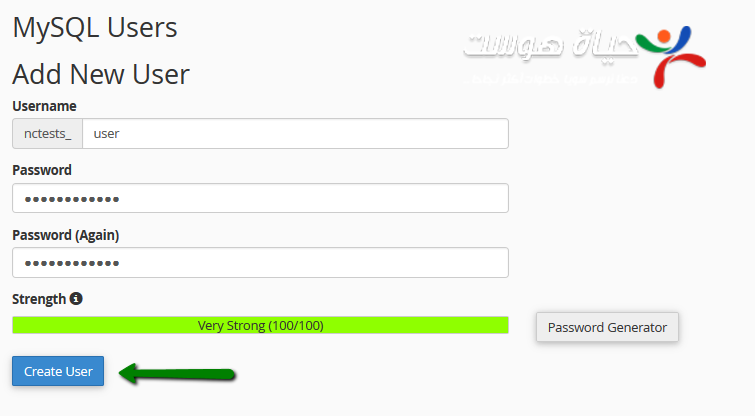
- On the same page, under MySQL Users → Add New User, enter a username and a strong password (letters and numbers), then click Create User.
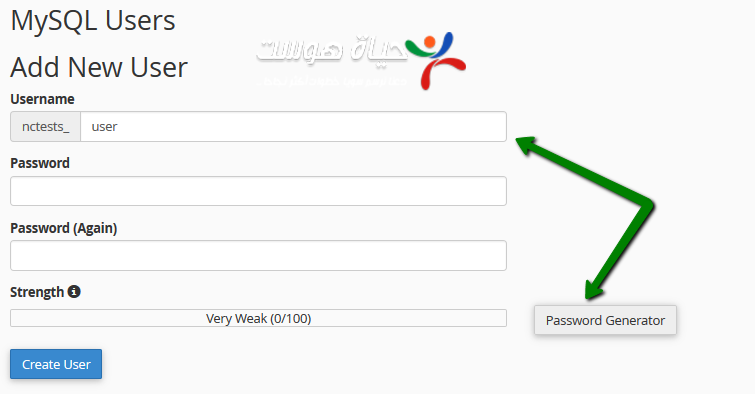
- Or click Password Generator to create a strong password automatically, and save it.
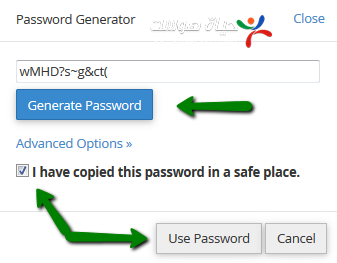
Step 3: Assign the user to the database
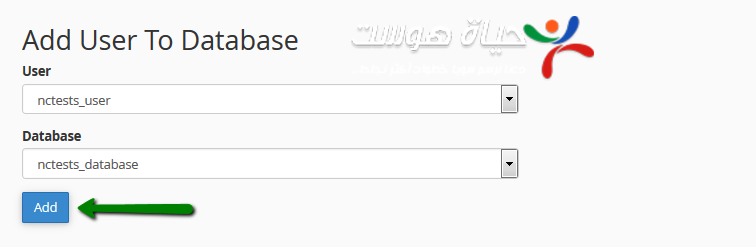
- Under Add User To Database, choose the user and the database you just created and click Add.
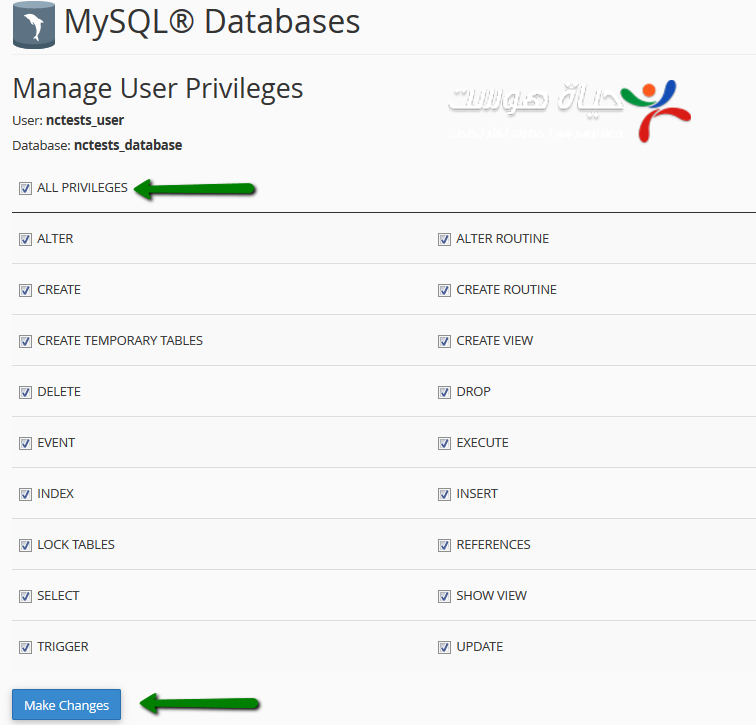
- Tick All Privileges, then click Make Changes.
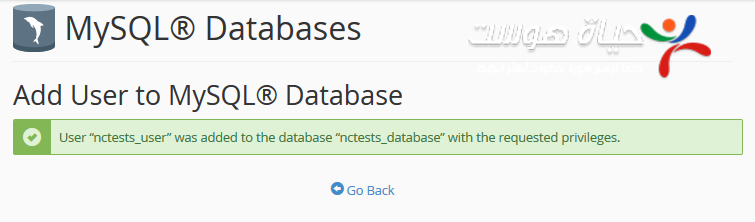
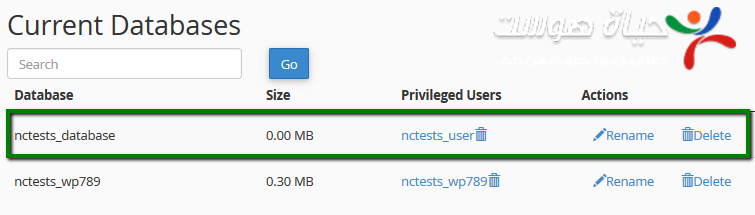
Note: cPanel adds your account prefix to database and user names. When a script asks for them, use the full names, for example user_dbname.
Next: install WordPress with your new database.
Related service: cPanel shared hosting from Hyyat Host, with support that replies within 24 hours.
Related guides