How to use File Manager in cPanel
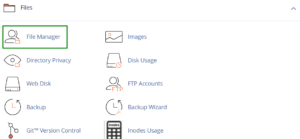
In this guideline, you will find detailed instructions how to manage (add, delete, view, modify) files from your cPanel account using File Manager.
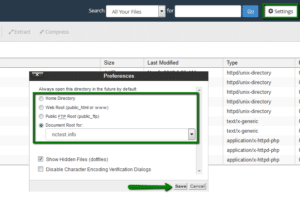
2. You will be taken /home/user directory by default. Feel free change the default directory in Settings menu:
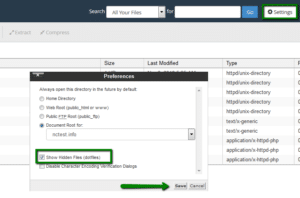
Here you can also enable Show Hidden Files (dotfiles) option. In this way system files, like .htaccess, will be displayed in File Manager as well:
The public_html folder is the web root for your primary domain name. This means that public_html is the folder where you put all website files which you want to appear when someone types your main domain (the one you provided when you signed up for hosting).
If you wish to upload files for your addon domain, you will need to move to home/user/youraddondomain.com directory. This directory is created automatically on adding an addon domain to the cPanel account.
3. The interface of File Manager is divided into 4 sections:
#1 The file manager toolbar
#2 The file window
#3 The navigation toolbar
#4 Current location window
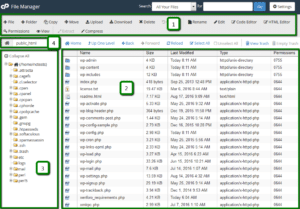
In the first section, you can find a toolbar with all the basic functions for managing files like create a new folder, delete a file, upload/download and much more.
The second is the file listing section, it displays the content of the selected directory. If no files or folders are created, the following message will be displayed in the file window This directory is an empty message.
The navigation toolbar section allows navigating between folders in the file window.
The location section shows the directory you are currently located in.

- Go to File Manager
- Navigate to the folder you wish to upload the file(s) to
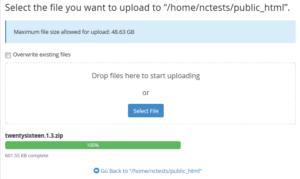
- Click on Upload icon
- Click Select File and locate the file on your local machine
- Select the file and click on Open/Choose
- Or simply drag and drop the needed file from your local machine to the upload window

-
- Go to File Manager
- Select the file(s) you wish to copy/move (to select multiple files, hold the Ctrl+Command button)
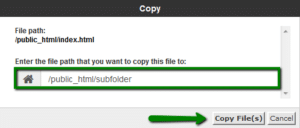
- After the needed items are selected, hit Copy or Move icon
- Or right-click on the selected file(s) and choose Copy or Move option from the drop-down menu
- Once done, the confirmation window with the final destination will pop-up

- Go to File Manager
- Navigate to the folder where you wish to create a file
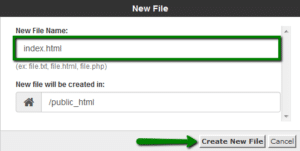
- Click on +File icon – a new pop up box will appear to enter the name of the file you wish to be created
- Click the Create New File

- Go File Manager
- Navigate to the folder where the file(s) you wish to delete is located
- Select the file(s) and hit Delete icon
- Or right-click on the file and use Delete option from the drop-down menu
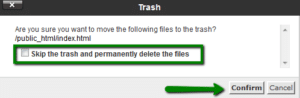
- Once done, the confirmation window will pop-up
- The deleted files are moved to the system .trash folder. If you wish to remove the file(s) permanently, check-mark Skip the trash and permanently delete the files option
NOTE: The files will be stored in the trash folder for 90 days. After that, they will be removed from the server automatically.

- Go to File Manager
- Navigate to .trash folder in /home/user/ directory
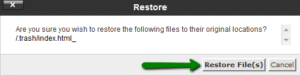
- Select the needed file(s) and hit Restore icon
- Or right-click on the file and use Restore option from the drop-down menu
- Once done, the confirmation window will pop-up

- Go File Manager
- Navigate to the folder where the file(s) you wish to rename is located
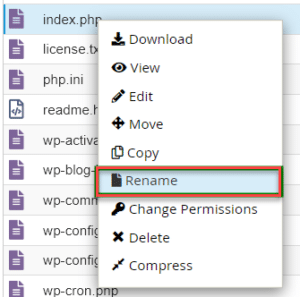
- Select the file(s) and hit Rename icon
- Or right-click on the file and use Rename option from the drop-down menu
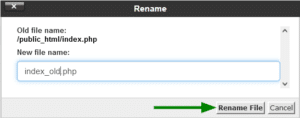
- Once done, the confirmation window will pop-up

- Go File Manager
- Select the file you wish to edit and hit one of Edit icons
- Or right-click on the file and use Edit/HTML Editor from the drop-down menu
- Choose one of the three following editors from the pop-up menu:
Edit: this editor will edit a document as code and give line numbers down the side of the editor. You can highlight your code with color by using the syntax drop-down menu and selecting the code you are working with
HTML Editor: this editor will edit a document as an HTML document. In this editor, you can also switch between design view (as a text document), source view (through the html code itself), or a preview mode (view the page through the web) by selecting the appropriate tab in the bottom left of the editor

It is useful to store a group of files in one file for an easy backup or for a transfer to another directory as well as compress large files. Compressed files take up less disk space and are downloaded faster via the Internet. The data can be compressed into a single *.zip, *.Gz, or *.Bz2 archive.
- Go to File Manager
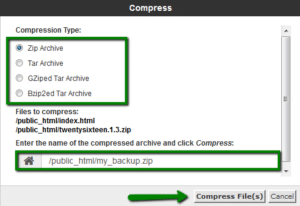
- Select the files/directories you wish to compress and hit Compress icon
- Define Compression Type and enter the name of the archive
- Once done, hit Compress File(s)

- Go to File Manager
- Select the file you wish to uncompress
- Hit Extract icon
- Or right-click on the file and use Extract option
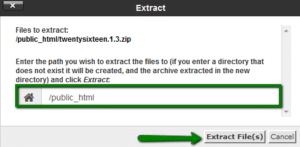
- Define the path you wish to extract the file to
- Once done, hit Extract File(s)
Best regards, Hayyt Host Team
Related service: cPanel shared hosting from Hyyat Host, with technical support that replies within 24 hours.